How to Save Tabsy Wins to Your Phone Home Screen
Adding Tabsy Wins to your phone’s Home Screen is a quick way to keep the free Minnesota pull-tab location finder at your fingertips. Instead of opening a browser, typing the web address, or digging through old tabs, you can tap a single icon and jump straight into searching for pull-tab locations across the state.
1. Why save Tabsy Wins to your Home Screen?
The Tabsy Wins website at tabsywins.com is a free, Minnesota-focused pull-tab location finder. Saving it to your Home Screen turns it into a convenient shortcut, so you can open it with one tap—just like you would open an app.
Once you’re on the site, you can search for places to play by city, ZIP code, location name, charity name, or your current location. You can also use game filters to narrow down where to go, and explore Minnesota casinos and racetracks. Having a Home Screen shortcut makes it easier to do a quick check before you head out, or while you’re out exploring Minnesota.
It is important to know what this shortcut does—and what it does not do. Adding Tabsy Wins to your Home Screen:
Creates a quick shortcut that opens the live Tabsy Wins website in your phone’s browser.
Does not create a Tabsy account or log you into anything automatically.
Does not activate win/loss tracking, play history, or budget tools.
Still requires an internet connection or mobile data to load the website and search locations.
Think of it as a handy bookmark that lives on your Home Screen. It looks like an app icon, but it is simply a fast way to reach the Tabsy Wins website whenever you need Minnesota pull-tab information.
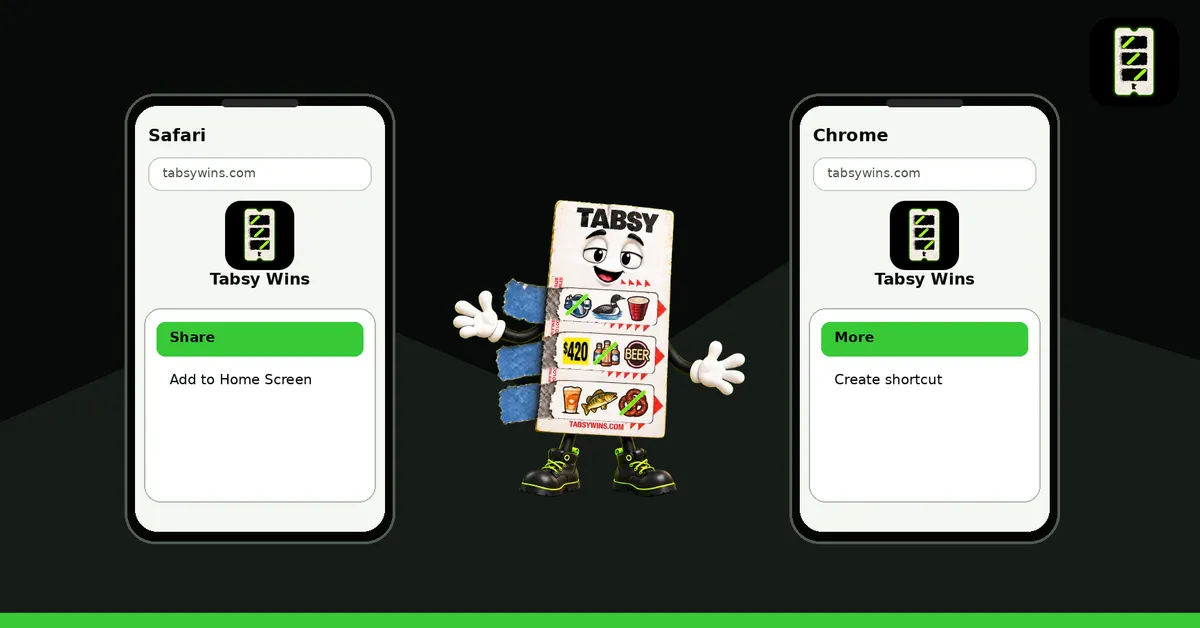
2. iPhone using Safari
If you use Safari as your main browser on iPhone, follow these steps to add Tabsy Wins to your Home Screen:
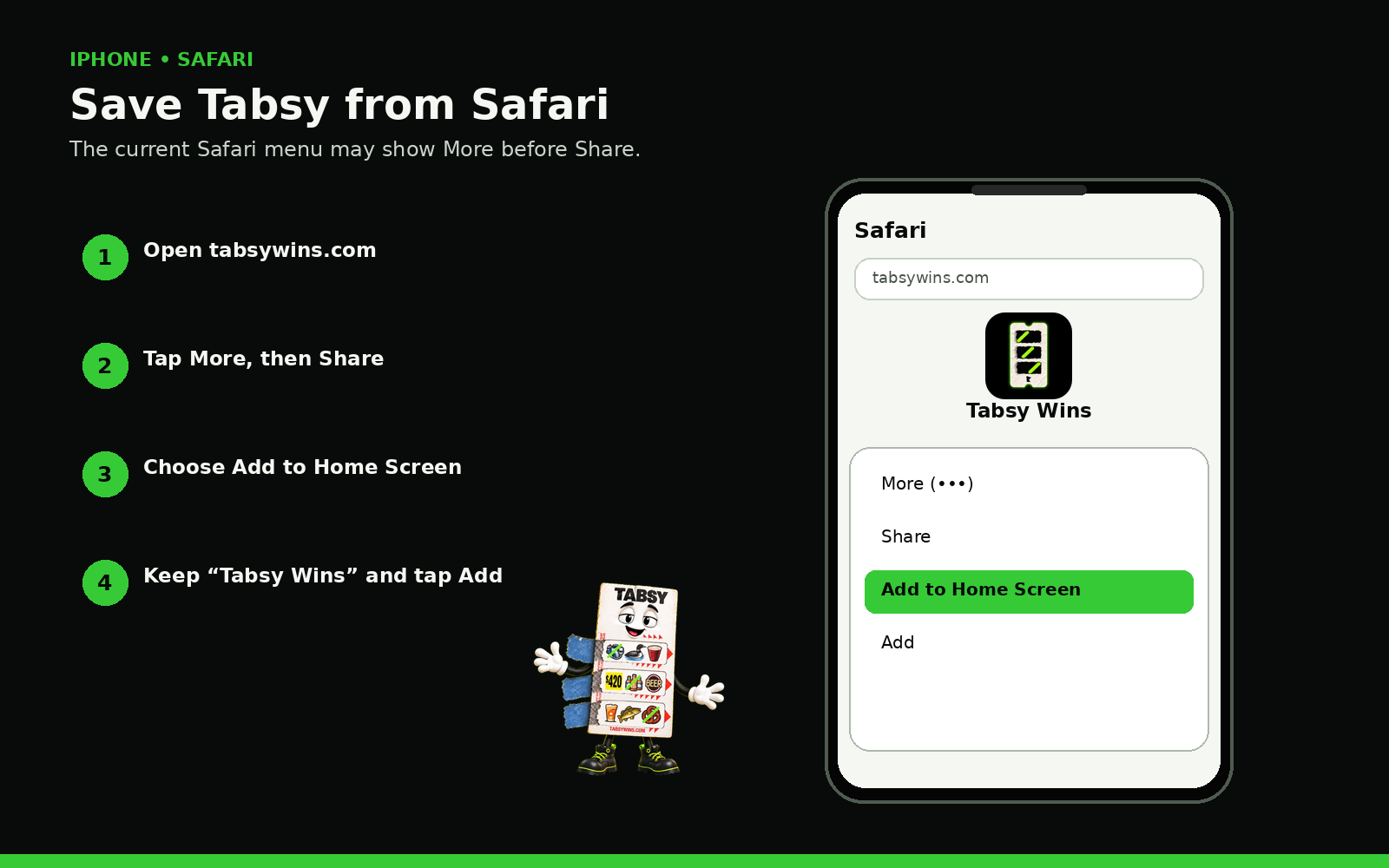
Open the Safari app and visit https://tabsywins.com/.
Tap More, then Share. On some Safari layouts, the square-with-up-arrow Share button is already visible at the bottom of the screen.
Scroll down in the Share options and select Add to Home Screen.
When the name field appears, type or confirm Tabsy Wins as the shortcut name.
Tap Add.
Find the new Tabsy Wins icon on your Home Screen and tap it anytime to open the website.
Safari will remember that this shortcut opens Tabsy Wins, so you can quickly search locations before a night out, a charitable gambling event, or a trip to a Minnesota casino or racetrack.
3. iPhone using Chrome
If you prefer Google Chrome on your iPhone, you can still create a Home Screen shortcut for Tabsy Wins. Chrome offers a built-in option to add websites to your Home Screen.
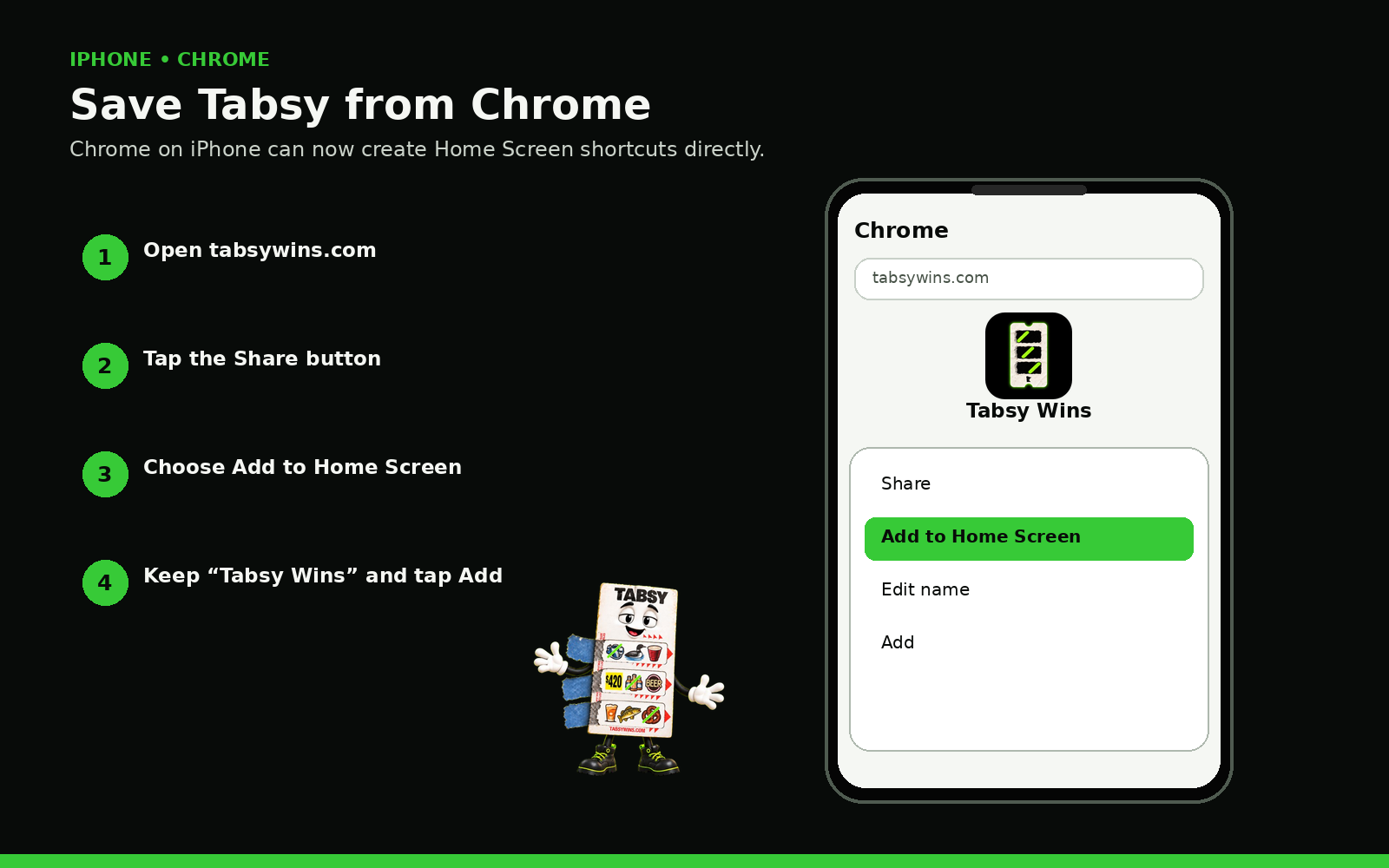
Open the Chrome app and visit https://tabsywins.com/.
Tap Share beside the address bar.
In the menu that appears, select Add to Home Screen.
Confirm that the name is Tabsy Wins, or type it in if needed.
Tap Add to finish creating the shortcut.
You will now see a Tabsy Wins icon on your Home Screen. Tapping it will open the site in Chrome, where you can search by city, ZIP code, charity, or current location whenever you need Minnesota pull-tab information.
4. Android using Chrome
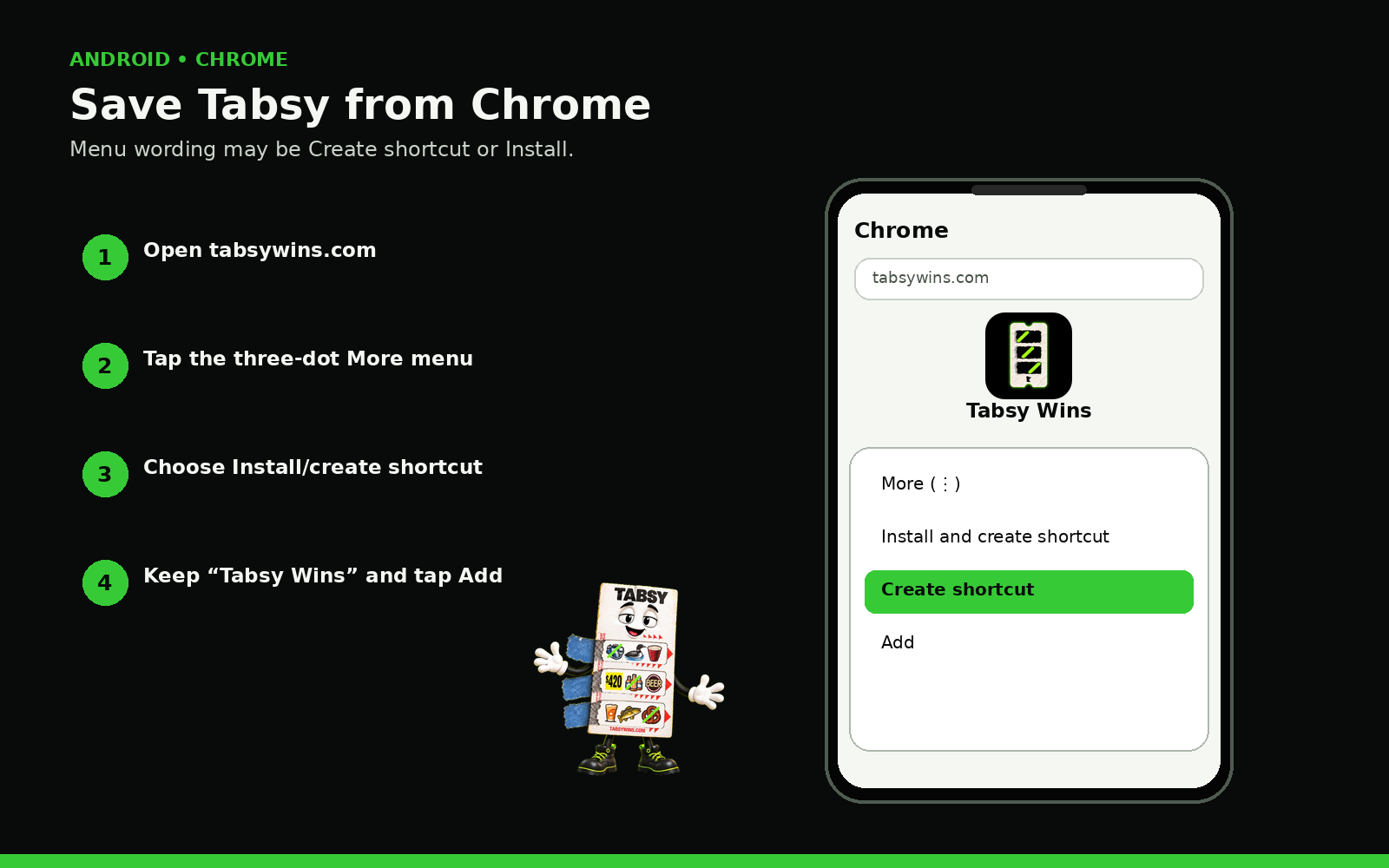
Many Android phones use Chrome as the default browser. You can add Tabsy Wins to your Home Screen using Chrome’s install and shortcut options. Menu wording can vary slightly by phone model and browser version, so your screen may look a bit different, but the steps are similar.
Open the Chrome app and visit https://tabsywins.com/.
Tap the three-dot More menu beside the address bar in the upper-right corner.
Select Install and create shortcut, then choose Create shortcut. On some Android versions, you may instead see Add to Home screen or just Install. These options work in a similar way to place a Tabsy Wins icon on your Home Screen.
Confirm the name Tabsy Wins for the shortcut.
Tap Add and follow any final placement instructions from your phone. Some phones let you drag the icon to a specific Home Screen; others place it automatically.
Once the shortcut is in place, you can tap Tabsy Wins anytime to open the website and look up Minnesota pull-tab locations, including bars, clubs, casinos, racetracks, and more.
5. Troubleshooting
If you do not see an option like Add to Home Screen, Install, or Create shortcut, try these tips:
Make sure you have opened Tabsy Wins in the full Safari or Chrome app, not in the built-in browser inside Facebook, Instagram, or another app. If you see the social app’s logo at the top, copy the link and open it in your main browser instead.
Scroll through the entire sharing or menu options list. The Add to Home Screen or similar choice can be lower in the list and easy to miss at first glance.
In Safari on iPhone, tap Edit Actions at the bottom of the Share sheet. From there, you may be able to add the Add to Home Screen action or move it higher so it is easier to find next time.
Update your browser to the latest version through the App Store or Google Play Store, then try the steps again. Older versions sometimes hide or handle shortcuts differently.
If a shortcut option is still unavailable on your device, you can always bookmark tabsywins.com in your browser and access the Minnesota location finder from your bookmarks list.
6. Is this the Tabsy app?
When you add Tabsy Wins to your Home Screen, it can look a lot like a regular app. However, it is currently a shortcut to the live Tabsy Wins website, not a native app from the app stores. Tapping the icon simply opens the website in your browser with one tap.
Private accounts, play history, win/loss tracking, and budgeting tools are planned features for the future, but they are not available right now. Adding a Home Screen shortcut does not create an account, does not store your play information, and does not turn on any tracking or alerts. It also does not provide notifications or offline access—you will still need an internet connection or mobile data to use the Minnesota location finder.
As Tabsy Wins grows, new options may be introduced, but this article only covers the current shortcut to the website. There is no promised app release date, and this shortcut will not automatically convert into a future app or account. For now, it is simply the easiest way to open the trusted Minnesota pull-tab information site quickly.
Open Tabsy Wins and start exploring
Open the free Minnesota pull-tab location finder
Tabsy Wins is an information and discovery tool, not a gambling operator. Charitable gambling in Minnesota is for adults 18 and older. Play for entertainment, set a budget that works for you, and stick to it.